This guide demonstrates three techniques for reducing noise and improving audio quality using Reaper plugins. It builds upon concepts from our Complete Guide to Podcast Editing.
The three techniques covered:
- Removing background noise
- Restoring off-mic vocals
- Reducing plosives
Requirements: Reaper 5.50+ and the SWS extension
Removing Background Noise
Background noise refers to consistent, unchanging ambient sound throughout a recording—computer fans, air conditioning hums, radiators, and similar sources. While prevention during recording is ideal, most voice tracks contain some level of background noise.
Using ReaFir
ReaFir is an incredibly powerful EQ and dynamics processor that uses FFT spectrum analysis, allowing precise audio editing across numerous frequency bands.
Process:
- Add ReaFir to your track via FX > Cockos > ReaFir
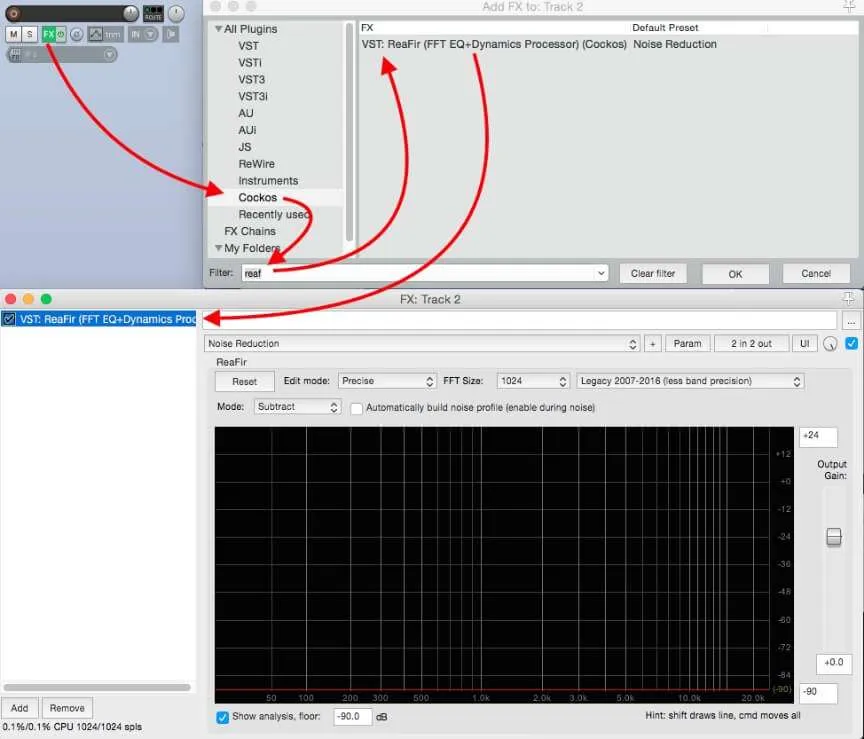
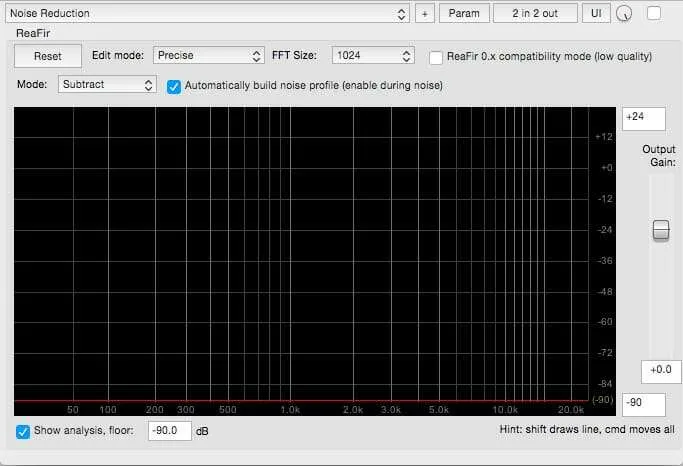
- Set Edit Mode to “Precise” with FFT Size of 1024
- Change Mode to “Subtract”
- Enable “Automatically build noise profile”
- Select a section containing only background noise (no voices or sounds)
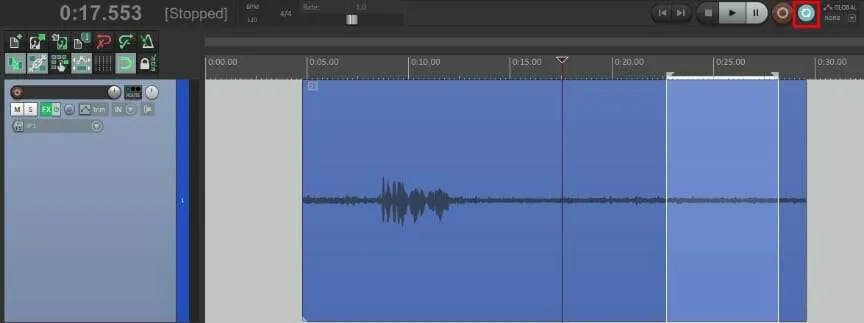 6. Loop the selection while ReaFir analyzes the noise pattern
7. Adjust the noise curve by Ctrl/Cmd-clicking and dragging down
8. Apply multiple passes (2-4) if needed for better results
6. Loop the selection while ReaFir analyzes the noise pattern
7. Adjust the noise curve by Ctrl/Cmd-clicking and dragging down
8. Apply multiple passes (2-4) if needed for better results
Performance Note: Multiple ReaFir instances across tracks can consume significant CPU resources. Consider rendering tracks to free processing power for additional effects.
Restoring Off-Mic Vocals
For severely compromised audio recordings where participants spoke off-microphone, this aggressive denoising technique can help:
- Apply up to four ReaFir instances to clean the primary track
- Duplicate the track and apply additional denoising to create a heavily processed version
- Adjust the secondary track’s level to enhance clarity without becoming noticeably distinct
Important: This method produces imperfect results and should only be used when recordings are borderline unintelligible.
Reducing Plosives
Plosives are explosive consonant sounds (p, b, t sounds) that create excessive low-end energy in microphone recordings. While pop filters help prevent them, editing solutions exist for post-production.
Setup Process
- Enable Per-take FX in Preferences > Appearance > Media
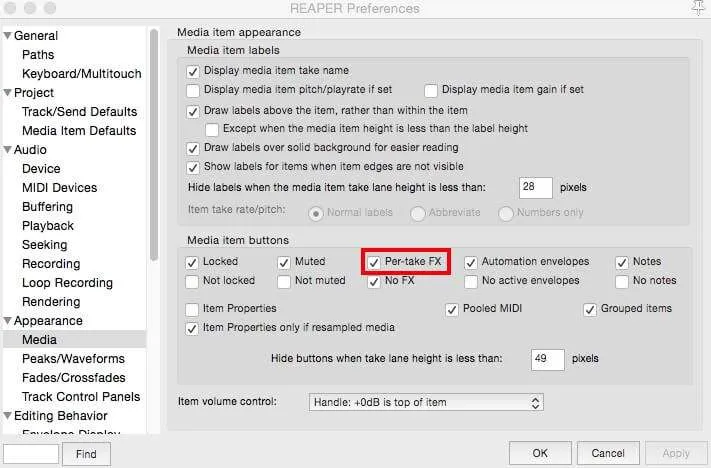
- Create a blank track and load ReaEQ
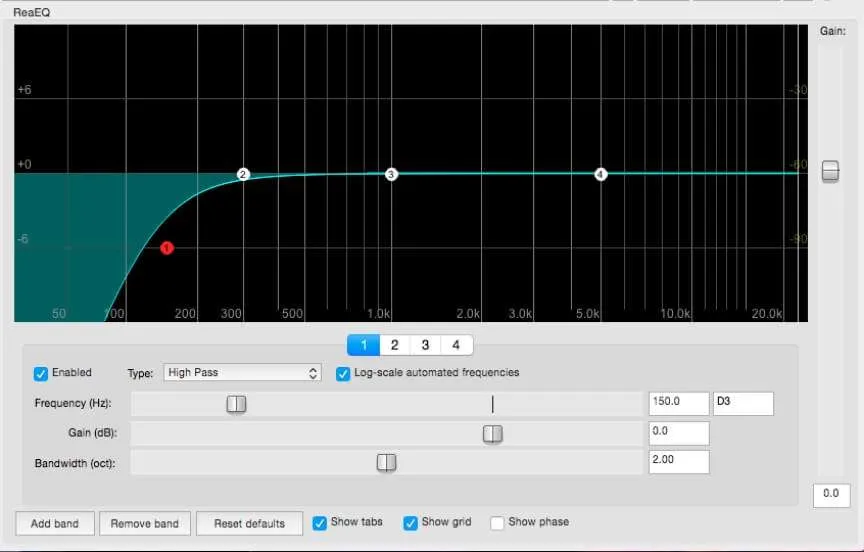
- Configure Band One as a High Pass filter:
- Frequency: 150 Hz
- Bandwidth: 2.00 octaves
- Save as an FX chain with a name beginning with “01 ”
- Create a custom action combining “Item: Split items at time selection” and “SWS/S&M: Resources – Paste FX chain to selected items, slot 1”
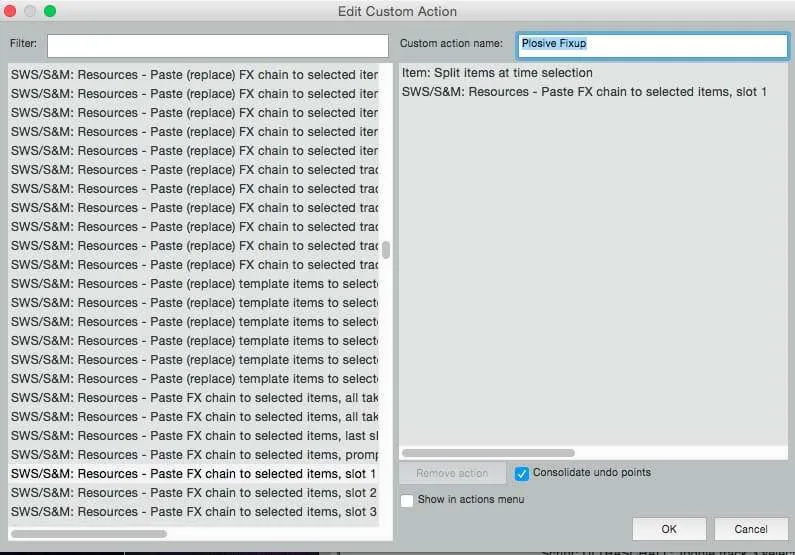 6. Assign a keyboard shortcut (we suggest “D”)
Application
Zoom in closely on plosive sounds, select only the explosive portion, and press the assigned hotkey to apply the EQ to that section exclusively.
Key Takeaways
| Technique | Use Case | Tool |
|---|---|---|
| Noise removal | Consistent background sounds | ReaFir (Subtract mode) |
| Off-mic restoration | Distant/unclear vocals | Multiple ReaFir passes |
| Plosive reduction | P/B/T sounds | ReaEQ High Pass |
Prevention during recording is always preferable to correction in post-production, but these techniques can salvage otherwise unusable audio.
Want professional audio without the technical complexity? If mixing and mastering isn’t where you want to spend your time, Podigy handles the entire post-production process.